http://www.projectshellcode.com/
http://www.corelan.be:8800/index.php/2009/07/19/exploit-writing-tutorial-part-1-stack-based-overflows/#more-2114
metasploit.com
(http://www.offensive-security.com/metasploit-unleashed/)
Offensive-security.com
http://www.securitytube.net
DVL (Damn Vulnerable Linux)http://www.damnvulnerablelinux.org/
De-ice Live cds http://heorot.net/livecds/
Backtrack.remote-exploit.com
Irongeek.com
Milw0rm.com
www.darknet.org.uk
WebGoat http://www.owasp.org/index.php/Category:OWASP_WebGoat_Project
Hacme Travel http://www.foundstone.com/us/resources/proddesc/hacmetravel.htm
Hacme Bank http://www.foundstone.com/us/resources/proddesc/hacmebank.htm
Hacme Shipping http://www.foundstone.com/us/resources/proddesc/hacmeshipping.htm
Hacme Casino http://www.foundstone.com/us/resources/proddesc/hacmecasino.htm
Hacme Books http://www.foundstone.com/us/resources/proddesc/hacmebooks.htm
http://pentest.cryptocity.net/files
Tuesday, 1 October 2013

Back Up MySQL Databases From The Command Line
While automated backups are important, sometimes you just want to
take a quick and dirty snapshot before making a change to your data.
When changing files in Linux, you can simply cp a file to another name, and cp it back if your change does not work out. With MySQL, it is not quite that simple, but it is by no means difficult.
If you want to back up a single database, you merely create the dump and send the output into a file, like so:
Multiple databases can be backed up at the same time:
It is also simple to back up all of the databases on a server:
If you are trying to restore a single database from dump of all the databases, you have to let mysql know like this:
Creating A Backup
The mysqldump command is used to create textfile “dumps” of databases managed by MySQL. These dumps are just files with all the SQL commands needed to recreate the database from scratch.If you want to back up a single database, you merely create the dump and send the output into a file, like so:
mysqldump database_name > database_name.sqlMultiple databases can be backed up at the same time:
mysqldump --databases database_one database_two > two_databases.sqlIt is also simple to back up all of the databases on a server:
mysqldump --all-databases > all_databases.sqlRestoring a Backup
Since the dump files are just SQL commands, you can restore the database backup by telling mysql to run the commands in it and put the data into the proper database.mysql database_name < database_name.sqlIf you are trying to restore a single database from dump of all the databases, you have to let mysql know like this:
mysql --one-database database_name < all_databases.sqlRestoring Databases From cPanel Backups
There is no special wisdom to pass on to you regarding restoring databases from cPanel backups. If you do not wish to use cPanel's automatic methods of restoring entire accounts, you can open up the individual backup on the command line, find the mysql dump file you wish to restore, and use the above commands to perform the restore.Friday, 27 September 2013
initctl: Job failed to start. Unable to start services for VMware Tools
Please get in touch if I’m misunderstanding what’s going on here, but, I think that the latest version of VMware tools has some incompatibilities with an out-of-the box Cent build (perhaps just the minimal install which I always use).
Firstly:
When installing VMware-tools the first time around I was getting errors with
When installing VMware-tools the first time around I was getting errors with
initctl: Job failed to start
Unable to start services for VMware Tools
Unable to start services for VMware Tools
There’s a few internet fingers pointed at the ThinPrint setup; I’m not using printing at all but I’m going to speculate that an install of CUPS and a few other things will fix this. I thought I’d just disable it but this is where if you’re new to CentOS 6.0 you’ll be confused and the internet won’t really help you.
As of 6.0 CentOS ships with upstart. You can google upstart vs sysvinit but for the purposes of fixing VMware tools, just remove /etc/init/vmware-tools-thinprint.conf.
You should then be able to run /etc/vmware-tools/services.sh start to start everything you’ll need and it should automatically via upstart next time you reboot. You’ll not see anything in chkconfig as the VMware tools daemon isn’t LSB compliant. You’ll know if everything is running as it should because you’ll get an output when you start vmware tools
Starting VMware Tools services in the virtual machine:
Switching to guest configuration: [ OK ]
VM communication interface: [ OK ]
VM communication interface socket family: [ OK ]
Guest filesystem driver: [ OK ]
Mounting HGFS shares: [ OK ]
Blocking file system: [ OK ]
Guest operating system daemon: [ OK ]
Switching to guest configuration: [ OK ]
VM communication interface: [ OK ]
VM communication interface socket family: [ OK ]
Guest filesystem driver: [ OK ]
Mounting HGFS shares: [ OK ]
Blocking file system: [ OK ]
Guest operating system daemon: [ OK ]
and you’ll see the running process
1959 ? Ssl 0:00 /usr/sbin/vmware-vmblock-fuse -o subtype=vmware-vmblock,default_permissions,allow_other /var/run/vmblock-fuse
1981 ? S 0:00 /usr/sbin/vmtoolsd
1981 ? S 0:00 /usr/sbin/vmtoolsd
Secondly:
Blocking file system: [FAILED]
Blocking file system: [FAILED]
If you’re getting this when running “/etc/vmware-tools/services.sh start” it’s down to VMware now relying on the FUSE project libs which aren’t necessarily installed. Fix with
yum install fuse-libs
Hope this helps somebody.
- See more at: http://www.utterlyforked.com/vmware-fusion-5-and-cent-6-4/#sthash.ZA8D86cU.dpuf
Basic Installation of a CentOS 6 Server
Contents
[hide]
|
Basic Server installation
ISO install
Download the latest CentOS-6.x-x86_64-minimal.iso for a 64-bit installation
or
CentOS-6.x-i386-minimal.iso for a 32-bit installation
from a CentOS mirror nearby you. Install, configure network and DNS. Log in via ssh and continue.
Install some useful Packages
yum -y install cronie wget ntp zip unzip rsync yum-utils \
postfix mailx sudo tcsh bind-utils nmap traceroute htop file \
vim man top telnet system-config-network-tui patch lsof sg3_utils
Starting the Cron Service
service crond status || service crond start
Turn off the Firewall
chkconfig iptables off
service iptables stop
Turn off SE Linux
sed --in-place=.BAK 's:SELINUX=[a-z]*:SELINUX=disabled:g' /etc/selinux/config
setenforce 0
Turn on Time Service
The system time should be controlled by a time server ntpdate pool.ntp.org
chkconfig ntpd on
service ntpd start
Set up RepoForge (Rpmforge) Repository
This repository provides other useful packages. On a 64-bit system install:
rpm -ivH http://pkgs.repoforge.org/rpmforge-release/rpmforge-release-0.5.2-2.el6.rf.x86_64.rpmOn a 32-bit system install:
rpm -ivH http://pkgs.repoforge.org/rpmforge-release/rpmforge-release-0.5.2-2.el6.rf.i686.rpm
VMWare Tools Installation
This section is only applicable if the server is running virtualized on VMWare ESXi Server. Setup: VMWare Tools Installation on CentOS
System Update
yum -y update
Install SUBVERSION on CENTOS 6
Source: http://www.if-not-true-then-false.com/2010/install-svn-subversion-server-on-fedora-centos-red-hat-rhel/
Note: If you don’t have Apache installed already, this command installs it also. Read more about installing Apache and PHP >>
Read more SVN Access Control >>
Note: Use exactly same file and path name as used on subversion.conf file. This example use /etc/svn-auth-users file.
Read more SVN Access Control >>
Restart Apache:
Goto http://localhost/svn/testrepo address and you should see something like following, write username and password:

SVN testrepo revision 0:
Then import template to project repository using “svn import” command:
Check results on browser and see testrepo revision 1:

1. Change root user
su -
## OR ##
sudo -i
|
2. Install needed packages (mod_dav_svn and subversion)
yum install mod_dav_svn subversion
|
3. Modify Subversion config file /etc/httpd/conf.d/subversion.conf
Add following config to /etc/httpd/conf.d/subversion.conf file:LoadModule dav_svn_module modules/mod_dav_svn.so LoadModule authz_svn_module modules/mod_authz_svn.so |
4. Add SVN (Subversion) users
Use following command:## Create testuser ##
htpasswd -cm /etc/svn-auth-users testuser
New password:
Re-type new password:
Adding password for user testuser
## Create testuser2 ##
htpasswd -m /etc/svn-auth-users testuser2
New password:
Re-type new password:
Adding password for user testuser2
|
Read more SVN Access Control >>
5. Create and configure SVN repository
mkdir /var/www/svn
cd /var/www/svn

svnadmin create testrepo
chown -R apache.apache testrepo


## If you have SELinux enabled (you can check it with "sestatus" command) ##
## then change SELinux security context with chcon command ##

chcon -R -t httpd_sys_content_t /var/www/svn/testrepo

## Following enables commits over http ##
chcon -R -t httpd_sys_rw_content_t /var/www/svn/testrepo
|
/etc/init.d/httpd restart
## OR ##
service httpd restart
|
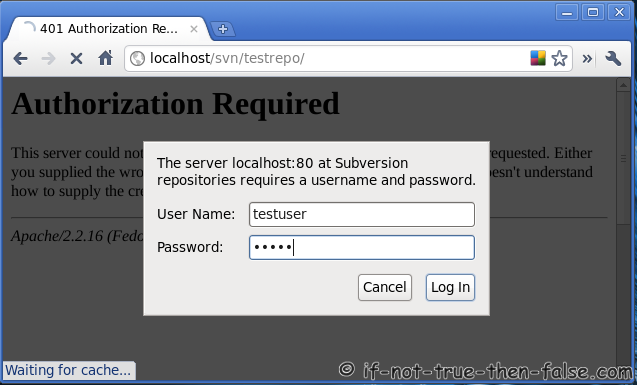
SVN testrepo revision 0:
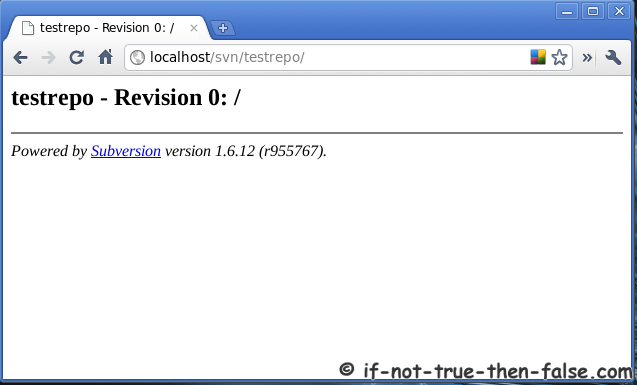
6. Configure repository
To disable anonymous access and enable access control add following rows to testrepo/conf/svnserve.conf file:## Disable anonymous access ##
anon-access = none
## Enable access control ##
authz-db = authz
|
7. Create trunk, branches and tags structure under testrepo
Create “template” directories with following command:mkdir -p /tmp/svn-structure-template/{trunk,branches,tags}
|
svn import -m 'Initial import' /tmp/svn-structure-template/ http://localhost/svn/testrepo/
Adding         /tmp/svn-structure-template/trunk
Adding         /tmp/svn-structure-template/branches
Adding         /tmp/svn-structure-template/tags

Committed revision 1.
|
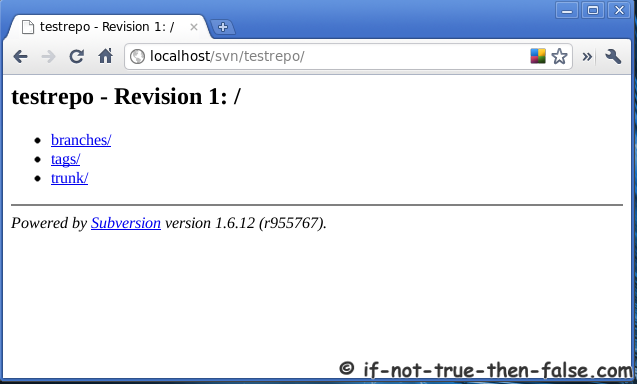
DNS Server Installation in CentOS 6.3
DNS (Domain Name System) is the core component of network infrastructure. The DNS service resolves hostname into ip address and vice versa. For example if we type http://www.ostechnix.com in browser, the DNS server translates the domain name into its corresponding ip address. So it makes us easy to remember the domain names instead of its ip address.
DNS Server Installation in CentOS 6.3
This how-to tutorial will shows you how to install and configure Primary and Scondary DNS server. The steps provided here are tested in CentOS 6.3 32 bit edition, but it should work in RHEL 6.x(x stands for version) and Scientific Linux 6.x too.
Scenario
Here are my test setup scenario
[A] Primary(Master) DNS Server Details:
Operating System     : CentOS 6.3 32 bit (Minimal Server)
Hostname             : masterdns.ostechnix.com
IP Address           : 192.168.1.200/24
[B] Secondary(Slave) DNS Server Details:
Operating System     : CentOS 6.3 32 bit (Minimal Server)
Hostname             : slavedns.ostechnix.com
IP Address           : 192.168.1.201/24
Setup Primary(Master) DNS Server
[root@masterdns ~]# yum install bind* -y
1. Configure DNS Server
The main configuration of the DNS will look like below. Edit and add the entries below which are marked as bold in this configuration files.
[root@masterdns ~]# vi /etc/named.conf
//
// named.conf
//
// Provided by Red Hat bind package to configure the ISC BIND named(8) DNS
// server as a caching only nameserver (as a localhost DNS resolver only).
//
// See /usr/share/doc/bind*/sample/ for example named configuration files.
//
options {
        listen-on port 53 { 127.0.0.1; 192.168.1.200;};                      ## Master DNS IP ##
        listen-on-v6 port 53 { ::1; };
        directory      "/var/named";
        dump-file      "/var/named/data/cache_dump.db";
        statistics-file "/var/named/data/named_stats.txt";
        memstatistics-file "/var/named/data/named_mem_stats.txt";
        allow-query     { localhost; 192.168.1.0/24; };                      ## IP Range ##
        allow-transfer { localhost; 192.168.1.201; };                        ## Slave DNS IP ##
        recursion yes;
        dnssec-enable yes;
        dnssec-validation yes;
        dnssec-lookaside auto;
        /* Path to ISC DLV key */
        bindkeys-file "/etc/named.iscdlv.key";
        managed-keys-directory "/var/named/dynamic";
};
logging {
        channel default_debug {
                file "data/named.run";
                severity dynamic;
        };
};
zone "." IN {
        type hint;
        file "named.ca";
};
zone    "ostechnix.com" IN {
        type master;
        file "fwd.ostechnix.com";
        allow-update { none; };
};
zone    "1.168.192.in-addr.arpa" IN {
        type master;
        file "rev.ostechnix.com";
        allow-update { none; };
};
include "/etc/named.rfc1912.zones";
include "/etc/named.root.key";
2. Create Zone files
Now we should create forward and reverse zone files which we mentioned in the ‘/etc/named.conf’ file.
[A] Create Forward Zone
Create ‘fwd.ostechnix.com’ file in the ‘/var/named’ directory and add the entries for forward zone as shown below.
[root@masterdns ~]# vi /var/named/fwd.ostechnix.com
$TTL 86400
@   IN  SOA     masterdns.ostechnix.com. root.ostechnix.com. (
        2011071001  ;Serial
        3600        ;Refresh
        1800        ;Retry
        604800      ;Expire
        86400       ;Minimum TTL
)
@       IN  NS      masterdns.ostechnix.com.
@       IN  NS       slavedns.ostechnix.com.
masterdns     IN  A    192.168.1.200
slavedns            IN  A        192.168.1.201
[B] Create Reverse Zone
Create ‘rev.ostechnix.com’ file in the ‘/var/named’ directory and add the entries for reverse zone as shown below.
[root@masterdns ~]# vi /var/named/rev.ostechnix.com
$TTL 86400
@   IN  SOA     masterdns.ostechnix.com. root.ostechnix.com. (
        2011071001  ;Serial
        3600        ;Refresh
        1800        ;Retry
        604800      ;Expire
        86400       ;Minimum TTL
)
@       IN  NS      masterdns.ostechnix.com.
@       IN  NS      slavedns.ostechnix.com.
masterdns      IN  A   192.168.1.200
slavedns        IN  A   192.168.1.201
200       IN  PTR     masterdns.ostechnix.com.
201           IN  PTR      slavedns.ostechnix.com.
3. Start the bind service
[root@masterdns ~]# service named start
Generating /etc/rndc.key:                                  [  OK  ]
Starting named:                                            [  OK  ]
[root@masterdns ~]# chkconfig named on
4. Allow DNS Server through iptables
Add the lines shown in bold letters in ‘/etc/sysconfig/iptables’ file. This will allow all clients to access the DNS server.
[root@masterdns ~]# vi /etc/sysconfig/iptables
# Firewall configuration written by system-config-firewall
# Manual customization of this file is not recommended.
*filter
:INPUT ACCEPT [0:0]
:FORWARD ACCEPT [0:0]
:OUTPUT ACCEPT [0:0]
-A INPUT -p udp -m state --state NEW --dport 53 -j ACCEPT
-A INPUT -p tcp -m state --state NEW --dport 53 -j ACCEPT-A INPUT -m state --state ESTABLISHED,RELATED -j ACCEPT
-A INPUT -p icmp -j ACCEPT
-A INPUT -i lo -j ACCEPT
-A INPUT -m state --state NEW -m tcp -p tcp --dport 22 -j ACCEPT
-A INPUT -j REJECT --reject-with icmp-host-prohibited
-A FORWARD -j REJECT --reject-with icmp-host-prohibited
COMMIT
5. Restart iptables to save the changes
[root@masterdns ~]# service iptables restart
iptables: Flushing firewall rules:                         [  OK  ]
iptables: Setting chains to policy ACCEPT: filter          [  OK  ]
iptables: Unloading modules:                               [  OK  ]
iptables: Applying firewall rules:                         [  OK  ]
6. Test syntax errors of DNS configuration and zone files
[A] Check DNS Config file
[root@masterdns ~]# named-checkconf /etc/named.conf
[root@masterdns ~]# named-checkconf /etc/named.rfc1912.zones
[B] Check zone files
[root@masterdns ~]# named-checkzone ostechnix.com /var/named/fwd.ostechnix.com
zone ostechnix.com/IN: loaded serial 2011071001
OK
[root@masterdns ~]# named-checkzone ostechnix.com /var/named/rev.ostechnix.com
zone ostechnix.com/IN: loaded serial 2011071001
OK
[root@masterdns ~]#
7. Test DNS Server
Method A:
[root@masterdns ~]# dig masterdns.ostechnix.com
; <<>> DiG 9.8.2rc1-RedHat-9.8.2-0.10.rc1.el6_3.6 <<>> masterdns.ostechnix.com
;; global options: +cmd
;; Got answer:
;; ->>HEADER<<- opcode: QUERY, status: NOERROR, id: 11496
;; flags: qr aa rd ra; QUERY: 1, ANSWER: 1, AUTHORITY: 2, ADDITIONAL: 1
;; QUESTION SECTION:
;masterdns.ostechnix.com.      IN      A
;; ANSWER SECTION:
masterdns.ostechnix.com. 86400 IN      A       192.168.1.200
;; AUTHORITY SECTION:
ostechnix.com.         86400   IN      NS      masterdns.ostechnix.com.
ostechnix.com.         86400   IN      NS      slavedns.ostechnix.com.
;; ADDITIONAL SECTION:
slavedns.ostechnix.com.        86400   IN      A       192.168.1.201
;; Query time: 5 msec
;; SERVER: 192.168.1.200#53(192.168.1.200)
;; WHEN: Sun Mar  3 12:48:35 2013
;; MSG SIZE  rcvd: 110
Method B:
[root@masterdns ~]# dig -x 192.168.1.200
; <<>> DiG 9.8.2rc1-RedHat-9.8.2-0.10.rc1.el6_3.6 <<>> -x 192.168.1.200
;; global options: +cmd
;; Got answer:
;; ->>HEADER<<- opcode: QUERY, status: NOERROR, id: 40891
;; flags: qr aa rd ra; QUERY: 1, ANSWER: 1, AUTHORITY: 2, ADDITIONAL: 2
;; QUESTION SECTION:
;200.1.168.192.in-addr.arpa.   IN      PTR
;; ANSWER SECTION:
200.1.168.192.in-addr.arpa. 86400 IN  PTR     masterdns.ostechnix.com.
;; AUTHORITY SECTION:
1.168.192.in-addr.arpa.        86400   IN      NS      masterdns.ostechnix.com.
1.168.192.in-addr.arpa.        86400   IN      NS      slavedns.ostechnix.com.
;; ADDITIONAL SECTION:
masterdns.ostechnix.com. 86400 IN      A       192.168.1.200
slavedns.ostechnix.com.        86400   IN      A       192.168.1.201
;; Query time: 6 msec
;; SERVER: 192.168.1.200#53(192.168.1.200)
;; WHEN: Sun Mar  3 12:49:53 2013
;; MSG SIZE  rcvd: 150
Method C:
[root@masterdns ~]# nslookup masterdns
Server:        192.168.1.200
Address:       192.168.1.200#53
Name:   masterdns.ostechnix.com
Address: 192.168.1.200
Thats it. Now the Primary DNS server is ready
Setup Secondary(Slave) DNS Server
[root@slavedns ~]# yum install bind* -y
1. Configure Slave DNS Server
Open the main configuration file ‘/etc/named.conf’ and add the lines as shown in bold letters.
[root@slavedns ~]# vi /etc/named.conf
//
// named.conf
//
// Provided by Red Hat bind package to configure the ISC BIND named(8) DNS
// server as a caching only nameserver (as a localhost DNS resolver only).
//
// See /usr/share/doc/bind*/sample/ for example named configuration files.
//
options {
        listen-on port 53 { 127.0.0.1; 192.168.1.201; };                    ## Slve DNS IP ##
        listen-on-v6 port 53 { ::1; };
        directory      "/var/named";
        dump-file      "/var/named/data/cache_dump.db";
        statistics-file "/var/named/data/named_stats.txt";
        memstatistics-file "/var/named/data/named_mem_stats.txt";
        allow-query     { localhost; 192.168.1.0/24; };                     ## IP Range ##
        recursion yes;
        dnssec-enable yes;
        dnssec-validation yes;
        dnssec-lookaside auto;
        /* Path to ISC DLV key */
        bindkeys-file "/etc/named.iscdlv.key";
        managed-keys-directory "/var/named/dynamic";
};
logging {
        channel default_debug {
                file "data/named.run";
                severity dynamic;
        };
};
zone "." IN {
        type hint;
        file "named.ca";
};
zone    "ostechnix.com" IN {
        type slave;
        file "slaves/ostechnix.fwd";
        masters { 192.168.1.200; };
};
zone    "1.168.192.in-addr.arpa" IN {
        type slave;
        file "slaves/ostechnix.rev";
        masters { 192.168.1.200; };
};
include "/etc/named.rfc1912.zones";
include "/etc/named.root.key";
2. Start the DNS Service
[root@slavedns ~]# service named start
Generating /etc/rndc.key:                                  [  OK  ]
Starting named:                                            [  OK  ]
[root@slavedns ~]# chkconfig named on
Now the forward and reverse zones are automatically replicated from Master DNS server to Slave DNS server.
To verify, goto DNS database location(i.e ‘/var/named/slaves’) and use command ‘ls’.
[root@slavedns ~]# cd /var/named/slaves/
[root@slavedns slaves]# ls
ostechnix.fwd  ostechnix.rev
The forward and reverse zones are automatically replicated from Master DNS. Now check the zone files whether the correct zone files are replicated or not.
[A] Check Forward zone:
[root@slavedns slaves]# cat ostechnix.fwd
$ORIGIN .
$TTL 86400     ; 1 day
ostechnix.com          IN SOA  masterdns.ostechnix.com. root.ostechnix.com. (
                               2011071001 ; serial
                               3600       ; refresh (1 hour)
                               1800       ; retry (30 minutes)
                               604800     ; expire (1 week)
                               86400      ; minimum (1 day)
                               )
                       NS      masterdns.ostechnix.com.
                       NS      slavedns.ostechnix.com.
$ORIGIN ostechnix.com.
masterdns              A       192.168.1.200
slavedns                A      192.168.1.201
[B] Check Reverse zone:
[root@slavedns slaves]# cat ostechnix.rev
$ORIGIN .
$TTL 86400     ; 1 day
1.168.192.in-addr.arpa IN SOA  masterdns.ostechnix.com. root.ostechnix.com. (
                               2011071001 ; serial
                               3600       ; refresh (1 hour)
                               1800       ; retry (30 minutes)
                               604800     ; expire (1 week)
                               86400      ; minimum (1 day)
                               )
                       NS      masterdns.ostechnix.com.
                       NS      slavedns.ostechnix.com.
$ORIGIN 1.168.192.in-addr.arpa.
200                    PTR     masterdns.ostechnix.com.
201                    PTR     slavedns.ostechnix.com.
masterdns              A       192.168.1.200
slavedns                A      192.168.1.201
3. Add the DNS Server details to all systems
[root@slavedns ~]# vi /etc/resolv.conf
# Generated by NetworkManager
search ostechnix.com
nameserver 192.168.1.200
nameserver 192.168.1.201
nameserver 8.8.8.8
4. Test DNS Server
Method A:
[root@slavedns ~]# dig slavedns.ostechnix.com
; <<>> DiG 9.8.2rc1-RedHat-9.8.2-0.10.rc1.el6_3.6 <<>> slavedns.ostechnix.com
;; global options: +cmd
;; Got answer:
;; ->>HEADER<<- opcode: QUERY, status: NOERROR, id: 39096
;; flags: qr aa rd ra; QUERY: 1, ANSWER: 1, AUTHORITY: 2, ADDITIONAL: 1
;; QUESTION SECTION:
;slavedns.ostechnix.com.              IN      A
;; ANSWER SECTION:
slavedns.ostechnix.com.        86400   IN      A       192.168.1.201
;; AUTHORITY SECTION:
ostechnix.com.         86400   IN      NS      masterdns.ostechnix.com.
ostechnix.com.         86400   IN      NS      slavedns.ostechnix.com.
;; ADDITIONAL SECTION:
masterdns.ostechnix.com. 86400 IN      A       192.168.1.200
;; Query time: 7 msec
;; SERVER: 192.168.1.200#53(192.168.1.200)
;; WHEN: Sun Mar  3 13:00:17 2013
;; MSG SIZE  rcvd: 110
Method B:
[root@slavedns ~]# dig masterdns.ostechnix.com
; <<>> DiG 9.8.2rc1-RedHat-9.8.2-0.10.rc1.el6_3.6 <<>> masterdns.ostechnix.com
;; global options: +cmd
;; Got answer:
;; ->>HEADER<<- opcode: QUERY, status: NOERROR, id: 12825
;; flags: qr aa rd ra; QUERY: 1, ANSWER: 1, AUTHORITY: 2, ADDITIONAL: 1
;; QUESTION SECTION:
;masterdns.ostechnix.com.      IN      A
;; ANSWER SECTION:
masterdns.ostechnix.com. 86400 IN      A       192.168.1.200
;; AUTHORITY SECTION:
ostechnix.com.         86400   IN      NS      masterdns.ostechnix.com.
ostechnix.com.         86400   IN      NS      slavedns.ostechnix.com.
;; ADDITIONAL SECTION:
slavedns.ostechnix.com.        86400   IN      A       192.168.1.201
;; Query time: 13 msec
;; SERVER: 192.168.1.200#53(192.168.1.200)
;; WHEN: Sun Mar  3 13:01:02 2013
;; MSG SIZE  rcvd: 110
Method C:
[root@slavedns ~]# nslookup slavedns
Server:        192.168.1.200
Address:       192.168.1.200#53
Name:   slavedns.ostechnix.com
Address: 192.168.1.201
Method D:
[root@slavedns ~]# nslookup masterdns
Server:        192.168.1.200
Address:       192.168.1.200#53
Name:   masterdns.ostechnix.com
Address: 192.168.1.200
Method E:
[root@slavedns ~]# dig -x 192.168.1.201
; <<>> DiG 9.8.2rc1-RedHat-9.8.2-0.10.rc1.el6_3.6 <<>> -x 192.168.1.201
;; global options: +cmd
;; Got answer:
;; ->>HEADER<<- opcode: QUERY, status: NOERROR, id: 56991
;; flags: qr aa rd ra; QUERY: 1, ANSWER: 1, AUTHORITY: 2, ADDITIONAL: 2
;; QUESTION SECTION:
;201.1.168.192.in-addr.arpa.   IN      PTR
;; ANSWER SECTION:
201.1.168.192.in-addr.arpa. 86400 IN  PTR     slavedns.ostechnix.com.
;; AUTHORITY SECTION:
1.168.192.in-addr.arpa.        86400   IN      NS      masterdns.ostechnix.com.
1.168.192.in-addr.arpa.        86400   IN      NS      slavedns.ostechnix.com.
;; ADDITIONAL SECTION:
masterdns.ostechnix.com. 86400 IN      A       192.168.1.200
slavedns.ostechnix.com.        86400   IN      A       192.168.1.201
;; Query time: 6 msec
;; SERVER: 192.168.1.200#53(192.168.1.200)
;; WHEN: Sun Mar  3 13:03:39 2013
;; MSG SIZE  rcvd: 150
Method F:
[root@slavedns ~]# dig -x 192.168.1.200
; <<>> DiG 9.8.2rc1-RedHat-9.8.2-0.10.rc1.el6_3.6 <<>> -x 192.168.1.200
;; global options: +cmd
;; Got answer:
;; ->>HEADER<<- opcode: QUERY, status: NOERROR, id: 42968
;; flags: qr aa rd ra; QUERY: 1, ANSWER: 1, AUTHORITY: 2, ADDITIONAL: 2
;; QUESTION SECTION:
;200.1.168.192.in-addr.arpa.   IN      PTR
;; ANSWER SECTION:
200.1.168.192.in-addr.arpa. 86400 IN  PTR     masterdns.ostechnix.com.
;; AUTHORITY SECTION:
1.168.192.in-addr.arpa.        86400   IN      NS      slavedns.ostechnix.com.
1.168.192.in-addr.arpa.        86400   IN      NS      masterdns.ostechnix.com.
;; ADDITIONAL SECTION:
masterdns.ostechnix.com. 86400 IN      A       192.168.1.200
slavedns.ostechnix.com.        86400   IN      A       192.168.1.201
;; Query time: 4 msec
;; SERVER: 192.168.1.200#53(192.168.1.200)
;; WHEN: Sun Mar  3 13:04:15 2013
;; MSG SIZE  rcvd: 150
Thats it. Both Primary and Secondary DNS Server is ready to use. Have a Good day!!!
Wednesday, 25 September 2013
cp -rfu still prompting me to overwrite
Sometimes
we want to copy a few folders and files over to a different directory,
other times we might want to copy a lot of files and folders. One very
common problem, is the normal way to force overwrite and not ask us for
every single file doesn’t always work.
The normal way to do this, is to run this command:
However,
on a lot of machines, the default cp command is running as cp -i, which
will hurt the chances of your -rf working successfully. The simple way
to fix that, is to define the actual cp script like this:
I also like to use that -u command. It is the update command which makes it only overwrite files newer then the destination.
The normal way to do this, is to run this command:
cp -rf /source/dir /destination/dir |
/bin/cp -rfu /source/dir /destination/dir |
Tuesday, 24 September 2013
Setup local repo with Centos 6
SOURCE: http://someideas.net/redhat/centos/setup-local-repository-centos-64
Since I'm doing a lot of test I decided to create a vmachine with local repository so by that way I'm not downloading the same packages over and over..
b. Install apache
Once is installed we need to create folder structure, in my case CentOS 6.4 x64:
rsync://rsync.cica.es/CentOS/
then the command will be:
Create .repo file:
* in server:
and add http access:
* in clients:
so everything is done, except for 1 thing, updates
for this I have to create a simple script and add to cron that launches rsync and createrepo, so:
and
then add to cron weekly /opt/rh/localrepoupdate and that's it!
rsync -avrt centoslocalrepo:/var/www/html/CentOS/6/updates/x86_64/ /var/www/html/CentOS/6/updates/x86_64/
link1: http://www.unixmen.com/setup-local-yum-repository-on-centos-rhel-scientific-linux-6-4/
link2: http://www.howtoforge.com/creating_a_local_yum_repository_centos
Since I'm doing a lot of test I decided to create a vmachine with local repository so by that way I'm not downloading the same packages over and over..
1. Install required software.
a. Install CentOS Base.b. Install apache
yum install httpd
mkdir -p /var/www/html/CentOS/6/os/x86_64/Packages
mkdir -p /var/www/html/CentOS/6/updates/x86_64/Packages
mkdir -p /var/www/html/CentOS/6/updates/x86_64/Packages
2. The Base + Update Repository
Select an rsync mirror for updates from CentOS Mirror List, I'm in Spain so:rsync://rsync.cica.es/CentOS/
then the command will be:
rsync -avrt rsync://rsync.cica.es/CentOS/6.4/os/x86_64/Packages/ --exclude=debug/ /var/www/html/CentOS/6/os/x86_64/Packages/
rsync -avrt rsync://rsync.cica.es/CentOS/6.4/updates/x86_64/Packages/ --exclude=debug/ /var/www/html/CentOS/6/updates/x86_64/Packages/
rsync -avrt rsync://rsync.cica.es/CentOS/6.4/updates/x86_64/Packages/ --exclude=debug/ /var/www/html/CentOS/6/updates/x86_64/Packages/
mv /etc/yum.repos.d/CentOS-Base.repo /etc/yum.repos.d/CentOS-Base.repo-BACKUP
vi /etc/yum.repos.d/CentOS-Base.repo
vi /etc/yum.repos.d/CentOS-Base.repo
[base.local]
name=CentOS-$releasever - Base
baseurl=http://centoslocalrepo/CentOS/$releasever/os/$basearch/
gpgcheck=0 [update.local]
name=CentOS-$releasever - Updates
baseurl=http://centoslocalrepo/CentOS/$releasever/updates/$basearch/
gpgcheck=0
name=CentOS-$releasever - Base
baseurl=http://centoslocalrepo/CentOS/$releasever/os/$basearch/
gpgcheck=0 [update.local]
name=CentOS-$releasever - Updates
baseurl=http://centoslocalrepo/CentOS/$releasever/updates/$basearch/
gpgcheck=0
3. Create Repo
createrepo -v /var/www/html/CentOS/6/os/x86_64
createrepo -v /var/www/html/CentOS/6/updates/x86_64
createrepo -v /var/www/html/CentOS/6/updates/x86_64
4. Final details + client machines
in order to add my local repo to all my CentOS machines I have to make some cosmetic changes:* in server:
vi /etc/sysconfig/iptables
[...]
-A INPUT -m state --state NEW -m tcp -p tcp --dport 80 -j ACCEPT
-A INPUT -m state --state NEW -m udp -p udp --dport 80 -j ACCEPT
[...]
-A INPUT -m state --state NEW -m tcp -p tcp --dport 80 -j ACCEPT
-A INPUT -m state --state NEW -m udp -p udp --dport 80 -j ACCEPT
[...]
service iptables restart
service httpd start
chkconfig httpd on
service httpd start
chkconfig httpd on
cp /etc/yum.repos.d/CentOS-Base.repo /var/www/html/
cd /etc/yum.repos.d/
mv CentOS-Base.repo CentOS-Base.repo-BACKUP
curl -O centoslocalrepo/CentOS-Base.repo
mv CentOS-Base.repo CentOS-Base.repo-BACKUP
curl -O centoslocalrepo/CentOS-Base.repo
for this I have to create a simple script and add to cron that launches rsync and createrepo, so:
touch /opt/rh/localrepoupdate
chmod +x /opt/rh/localrepoupdate
vi /opt/rh/localrepoupdate
chmod +x /opt/rh/localrepoupdate
vi /opt/rh/localrepoupdate
#!/bin/bash
rsync -avrt rsync://rsync.cica.es/CentOS/6.4/updates/x86_64/Packages/ --exclude=debug/ /var/www/html/CentOS/6/updates/x86_64/Packages/
createrepo -v /var/www/html/CentOS/6/updates/x86_64
rsync -avrt rsync://rsync.cica.es/CentOS/6.4/updates/x86_64/Packages/ --exclude=debug/ /var/www/html/CentOS/6/updates/x86_64/Packages/
createrepo -v /var/www/html/CentOS/6/updates/x86_64
then add to cron weekly /opt/rh/localrepoupdate and that's it!
5. Create clone local repository
rsync -avrt centoslocalrepo:/var/www/html/CentOS/6/os/x86_64/ /var/www/html/CentOS/6/os/x86_64/rsync -avrt centoslocalrepo:/var/www/html/CentOS/6/updates/x86_64/ /var/www/html/CentOS/6/updates/x86_64/
link1: http://www.unixmen.com/setup-local-yum-repository-on-centos-rhel-scientific-linux-6-4/
link2: http://www.howtoforge.com/creating_a_local_yum_repository_centos
NTFS Support on Linux: CentOS and RHEL
NTFS Support on CentOS 6.x
source: http://www.confignotes.com/2013/05/ntfs-support-on-centos-6-x/Install ntfs-3g.xxx package from EPEL, xxx is the CPU architecture.
To get the epel repo:
# wget http://dl.fedoraproject.org/pub/epel/6/x86_64/epel-release-6-8.noarch.rpm
# rpm -Uvh epel-release-6-8.noarch.rpm
# yum install ntfs-3g
For additional functionality, install ntfsprogs and ntfsprogs-gnomevfs
# yum install ntfsprogs ntfsprogs-gnomevfs
Mounting an NTFS filesystem
Example:
Suppose your ntfs filesystem is /dev/sda2 and you are going to mount it on /mnt/ntfsPart, do the following.
# mkdir /mnt/ntfsPart
Edit /etc/fstab as follows:
To mount read-only:
/dev/sda3 /mnt/ntfsPart ntfs-3g ro,umask=0222,defaults 0 0
To mount read-write:
/dev/sda3 /mnt/ntfsPart ntfs-3g rw,umask=0000,defaults 0 0
Mount it by running:
#mount /dev/sda3 /mnt/ntfsPart
Monday, 23 September 2013
Configuring Multiple Default Routes in Linux
SOURCE: http://kindlund.wordpress.com/2007/11/19/configuring-multiple-default-routes-in-linux/
Assume you have a Linux system with more than one network interface card (NIC) — say
This can be a bit of a problem — especially when the two NICs share the same parent network and you’re trying to preserve sane traffic flows. In a nutshell, this post will explain how you can ensure traffic going into
You’ve found the one post that actually explains this issue; your googling has paid off. You wouldn’t believe how many advanced Linux routing websites out there explain how to route everything including your kitchen sink — yet fail to clearly explain something as simple as this.
As always, we’ll explain by example. Assume the following:
During the kernel compilation process, you’ll want to:
Speaking of which, assume the system’s initial route configuration looks like this:
Here’s how to fix this issue. Borrowing the method from a really sketchy website [2], you’ll first need to create a new policy routing table entry within the
We’re now going to create two new rule entries, that will be evaluated before the main rule entry.
Congratulations! You’re system should now properly route traffic to these two different default gateways. For more than 2 NICs, repeat the table/rule creation process as necessary.
Please provide comments, if you find any errors or have corrections to this post. I don’t claim that this method will work for everyone; this information is designed primarily to preserve my sanity, when configuring routing on future multi-NIC Linux systems.
References:
[1] http://www.policyrouting.org
[2] http://www.linuxhorizon.ro/iproute2.html
Update: Here are some additional resources, that I have found useful.
http://lartc.org/howto/lartc.rpdb.multiple-links.html
http://linux-ip.net/html/routing-tables.html
Update: Apparently, OpenBSD also now supports multiple default routes through a new feature called the Virtual Routing Table:
http://www.packetmischief.ca/2011/09/20/virtualizing-the-openbsd-routing-table/
Assume you have a Linux system with more than one network interface card (NIC) — say
eth0 and eth1. By default, administrators can define a single, default route (on eth0). However, if you receive traffic (i.e., ICMP pings) on eth1, the return traffic will go out eth0 by default.This can be a bit of a problem — especially when the two NICs share the same parent network and you’re trying to preserve sane traffic flows. In a nutshell, this post will explain how you can ensure traffic going into
eth0 goes out only on eth0, as well as enforce all traffic going into eth1 goes out only on eth1.You’ve found the one post that actually explains this issue; your googling has paid off. You wouldn’t believe how many advanced Linux routing websites out there explain how to route everything including your kitchen sink — yet fail to clearly explain something as simple as this.
As always, we’ll explain by example. Assume the following:
First, you’ll need to make sure your Linux kernel has support for “policy routing” enabled. (As a reference, I’m using a
eth0 - 10.10.70.38 netmask 255.255.255.0eth0's gateway is: 10.10.70.254eth1 - 192.168.7.126 netmask 255.255.255.0eth1's gateway is: 192.168.7.1
v2.6.13-gentoo-r5 kernel.)During the kernel compilation process, you’ll want to:
cd /usr/src/linux

make menuconfig

Select "Networking --->"

Select "Networking options --->"

[*] TCP/IP networking

[*] IP: advanced router

Choose IP: FIB lookup algorithm (FIB_HASH)

[*] IP: policy routing

[*] IP: use netfilter MARK value as routing key
Next, you’ll want to download, compile, and install the iproute2 [1] utilities. (Most Linux distributions have binary packages for this utility.) Once installed, typing ip route show should bring up your system’s routing table. Type man ip for more information about this utility, in general.Speaking of which, assume the system’s initial route configuration looks like this:
# netstat -anr

Kernel IP routing table

Destination Gateway Genmask Flags MSS Window irtt Iface

192.168.7.0 0.0.0.0 255.255.255.0 U 0 0 0 eth1

10.10.70.0 0.0.0.0 255.255.255.0 U 0 0 0 eth0

0.0.0.0 192.168.7.1 0.0.0.0 UG 0 0 0 eth1
So, basically, the system is using eth1 as the default route. If anyone pings 192.168.7.126, then the response packets will properly go out eth1 to the upstream gateway of 192.168.7.1. But what about pinging 10.10.70.38? Sure, the incoming ICMP packets will properly arrive on eth0, but the outgoing response packets will be sent out via eth1! That’s bad.Here’s how to fix this issue. Borrowing the method from a really sketchy website [2], you’ll first need to create a new policy routing table entry within the
/etc/iproute2/rt_tables. Let’s call it table #1, named “admin” (for routing administrative traffic onto eth0).
# echo "1 admin" >> /etc/iproute2/rt_tables
Next, we’re going to set a couple of new entries within this “admin” table. Specifically, we’ll provide information about eth0‘s local /24 subnet, along with eth0‘s default gateway.
ip route add 10.10.70.0/24 dev eth0 src 10.10.70.38 table admin

ip route add default via 10.10.70.254 dev eth0 table admin
At this point, you’ve created a new, isolated routing table named
“admin” that really isn’t used by the OS just yet. Why? Because we still
need to create a rule referencing how the OS should use this table. For starters, type ip rule show to see your current policy routing ruleset. Here’s what an empty ruleset looks like:
0: from all lookup local

32766: from all lookup main

32767: from all lookup default
Without going into all the boring details, each rule entry is evaluated in ascending order. The main gist is that your normal main routing table appears as entry 32766 in this list. (This would be the normal route table you’d see when you type netstat -anr.)We’re now going to create two new rule entries, that will be evaluated before the main rule entry.
ip rule add from 10.10.70.38/32 table admin

ip rule add to 10.10.70.38/32 table admin
Typing ip rule show now shows the following policy routing rulesets:
0: from all lookup local

32764: from all to 10.10.70.38 lookup admin

32765: from 10.10.70.38 lookup admin

32766: from all lookup main

32767: from all lookup default
Rule 32764 specifies that for all traffic going to eth0‘s
IP, make sure to use the “admin” routing table, instead of the “main”
one. Likewise, rule 32765 indicates that for all traffic originating
from eth0‘s IP, make sure to use the “admin” routing table
as well. For all other packets, use the “main” routing table. In order
to commit these changes, it’s a good idea to type ip route flush cache.Congratulations! You’re system should now properly route traffic to these two different default gateways. For more than 2 NICs, repeat the table/rule creation process as necessary.
Please provide comments, if you find any errors or have corrections to this post. I don’t claim that this method will work for everyone; this information is designed primarily to preserve my sanity, when configuring routing on future multi-NIC Linux systems.
References:
[1] http://www.policyrouting.org
[2] http://www.linuxhorizon.ro/iproute2.html
Update: Here are some additional resources, that I have found useful.
http://lartc.org/howto/lartc.rpdb.multiple-links.html
http://linux-ip.net/html/routing-tables.html
Update: Apparently, OpenBSD also now supports multiple default routes through a new feature called the Virtual Routing Table:
http://www.packetmischief.ca/2011/09/20/virtualizing-the-openbsd-routing-table/
Two default routes
source: http://www.rjsystems.nl/en/2100-adv-routing.php
1. Installation To activate Linux advanced routing on a Debian GNU/Linux system, install the iproute package:
~# apt-get install iprouteThis will create the /etc/iproute2/ directory. It also installs some new executables, including ip.
2. The ip command From a command line on any Linux system, you can see the existing routing table by simply typing route at the prompt (or /sbin/route if /sbin is not in your path). Your routing table will be similar to this:
Kernel IP routing table
Destination  Gateway       Genmask        Flags Metric Ref  Use Iface
192.168.1.0  *             255.255.255.0  U     0      0      0 eth1
default      my.host.com   0.0.0.0        UG    0      0      0 eth1
Advanced routing commands are issued as arguments to the ip command. To see the routing table with iproute2, you can use the long version ip route show table main or the shortcut version ip route like this:
192.168.1.0/24 dev eth1  proto kernel  scope link  src 192.168.1.20
default via 192.168.1.10 dev eth1
3. (Hot) Potato routing Typically, a host connected to a network, such as the Internet, will have one default route and one Internet (WAN) interface. However, if a second connection to the Internet is added and both are accessed, you can end up with a situation referred to as (hot) potato routing, or deflection routing.
Normally, when a packet, such as an ICMP ping, arrives at the primary interface, it is examined by the host, after which a reply packet is generated, the routing table is consulted and the packet it sent back via the default route. On the other hand, if a ping packet arrives at the secondary WAN interface, the same thing happens: it is examined by the host, a reply packet is generated, the routing table is consulted and the packet it sent back via the default route. In other words: a packet is received on one interface and the reply is sent back via the other.
In theory such packets can be routed, but are dropped by ISPs. That's because these packets have a source address that is not part of the network that they are being routed from -- they look like they've been forged. Indeed, such forged packet headers are often used in DOS attacks.
However, if you have more than one connection to the Internet and you want to use them all despite the fact that you have only one default route, what can you do? The answer is advanced routing.
4. Configuring two default routes With advanced routing, you can have as many routing tables as you want. In the example below, we add just one for an extra DSL line from an ISP called "cheapskate."
First add a name for the new routing table to the /etc/iproute2/rt_tables file. This can be appended to it with the command echo 2 cheapskate >> /etc/iproute2/rt_tables. The result looks like this:
#
# reserved values
#
255     local
254     main
253     default
0       unspec
#
# local
#
#1      inr.ruhep
2 cheapskate
Above I mentioned that the command ip route is actually a shortcut for the longer command ip route show table main. Since there is no shortcut to list the new routing table, you have no choice but to use the long form: ip route show table cheapskate. Entering this command now will reveal that this new table is still empty.
All that is necessary is to add the new default route to the cheapskate table -- the old main table will continue to handle the rest. The reason for this will soon become clear. Here is the existing main table:
~# ip route show table main
192.168.1.0/24 dev eth0  proto kernel  scope link  src 192.168.1.10
192.168.2.0/24 dev eth1  proto kernel  scope link  src 192.168.2.10
default via 192.168.1.1 dev eth0
~# _
As follows, add the new default route to table cheapskate and then display it:
~# ip route add default via 192.168.2.1 dev eth1 table cheapskate
~# ip route show table cheapskate
default via 192.168.2.1 dev eth1
~# _
As you can see, the entire table consists of a single line. However, it is not yet being used. To implement it, the command, ip rule is required. Routing tables determine packet destinations, but now we need the kernel to use different routing tables depending on their source addresses. The existing set of ip rules is very simple:
~# ip rule
0:      from all lookup local
32766:  from all lookup main
32767:  from all lookup default
~# _
At this point you need to add a new rule:
~# ip rule add from 192.168.2.10 lookup cheapskate prio 1000This command adds a rule for when a packet has a from pattern of 192.168.2.10 in which case the routing table cheapskate should be used with a priority level of 1000. In this example the pattern only needs to match one address, but you can set patterns in a Linux router to match different sets of addresses.
~# ip rule
0:      from all lookup local
1000:   from 192.168.2.10 lookup cheapskate
32766:  from all lookup main
32767:  from all lookup default
~# _
The kernel searches the list of ip rules starting with the lowest priority number, processing each routing table until the packet has been routed successfully.
The default ruleset always has a local table with a match pattern of all. The local table (priority 0) handles traffic that is supposed to stay on the localhost, as well as broadcast traffic.
After the local rule comes our new rule with a priority of 1000. This priority number is arbitrary, but makes it easy to add other rules before and after it later on.
Our new rule comes before the main table, which is the one that is modified by the old route command. The last rule is for the default table. I'm not certain what it's for, as I've always found it to be empty, and seeing as there is a default route in the table main, no traffic ever gets to the table default.
** Warning ** When working with more than one routing table, never forget to add the table part of the command. If you do forget, rule changes in the wrong table (main) can seem awfully mysterious. When learning the ropes and working remotely, you will probably lock yourself out a few times this way: the changes happen very quickly, so it may be wise to use a console instead.
Another important point to remember is that routes are cached. In other words, if you update a routing table and nothing seems to happen, it's because the table is still in memory. The solution is simply to flush the cache with ip route flush table cache. In this manner it is possible to first make a number of changes and then flush the cache so that all of the changes will be implemented simultaneously. This is actually convenient when working on an active router.
5. Example configuration When a secondary WAN interface became available at a client site, I wanted to allow their remote users to use this connection as an alternative in case their primary Internet connection ever went down. With Linux, we now know that this is possible.
First, some background information. The client's router had the following interfaces:
- eth0     Primary Internet connection (Versatel).
           inet addr: 87.215.195.178
           Bcast:     87.215.195.183
           Mask:      255.255.255.248

- eth0:0   Private net behind the Versatel ADSL modem/router.
           inet addr: 192.168.1.1
           Bcast:     192.168.1.255
           Mask:      255.255.255.0

- eth0:1   Private net behind the Zonnet ADSL modem/router.
           inet addr: 10.0.0.100
           Bcast:     10.255.255.255
           Mask:      255.0.0.0

- eth1     Private net -- main internal network segment.
           inet addr: 192.168.13.1
           Bcast:     192.168.13.255
           Mask:      255.255.255.0

- eth2     Private net -- wireless internal network segment.
           inet addr: 192.168.14.1
           Bcast:     192.168.14.255
           Mask:      255.255.255.0

- lo       Loopback interface.
           inet addr: 127.0.0.1
           Mask:      255.0.0.0

- ppp0     Secondary Internet connection (Zonnet).
           inet addr: 62.58.236.234
           P-t-P:     195.190.250.17
           Mask:      255.255.255.255
The main routing table displayed with route -n:
Kernel IP routing table
Destination     Gateway         Genmask         Flags Metric Ref Use Iface
195.190.250.17  0.0.0.0         255.255.255.255 UH    0      0     0 ppp0
87.215.195.176  0.0.0.0         255.255.255.248 U     0      0     0 eth0
62.58.50.0      62.58.236.234   255.255.255.128 UG    0      0     0 ppp0
192.168.1.0     0.0.0.0         255.255.255.0   U     0      0     0 eth0
192.168.14.0    0.0.0.0         255.255.255.0   U     0      0     0 eth2
192.168.13.0    0.0.0.0         255.255.255.0   U     0      0     0 eth1
62.58.232.0     62.58.236.234   255.255.248.0   UG    0      0     0 ppp0
10.0.0.0        0.0.0.0         255.0.0.0       U     0      0     0 eth0
0.0.0.0         87.215.195.177  0.0.0.0         UG    0      0     0 eth0
The route for 62.58.232.0/21 via ppp0 may be unnecessary, but I figured it would be 'cheaper' because the IP address for ppp0 is part of the same network. The route to 62.58.50.0/25 via the ppp0, on the other hand, is a network segment that includes an SMTP relay that is not be available via any other route.
The list of interfaces displayed with ip link list:
1: lo:NB: sit0 is an IPv6-IPv4 tunnel.mtu 16436 qdisc noqueue link/loopback 00:00:00:00:00:00 brd 00:00:00:00:00:00 2: eth0: mtu 1500 qdisc pfifo_fast qlen 1000 link/ether 00:00:24:c1:10:5c brd ff:ff:ff:ff:ff:ff 3: eth1: mtu 1500 qdisc pfifo_fast qlen 1000 link/ether 00:00:24:c1:10:5d brd ff:ff:ff:ff:ff:ff 4: eth2: mtu 1500 qdisc pfifo_fast qlen 1000 link/ether 00:00:24:c1:10:5e brd ff:ff:ff:ff:ff:ff 5: sit0: mtu 1480 qdisc noop link/sit 0.0.0.0 brd 0.0.0.0 6: ppp0: mtu 1500 qdisc pfifo_fast qlen 3 link/ppp
The main routing table displayed with ip route show table main:
195.190.250.17 dev ppp0  proto kernel  scope link  src 62.58.236.234
87.215.195.176/29 dev eth0  proto kernel  scope link  src 87.215.195.178
62.58.50.0/25 via 62.58.236.234 dev ppp0  scope link
192.168.1.0/24 dev eth0  proto kernel  scope link  src 192.168.1.1
192.168.14.0/24 dev eth2  proto kernel  scope link  src 192.168.14.1
192.168.13.0/24 dev eth1  proto kernel  scope link  src 192.168.13.1
62.58.232.0/21 via 62.58.236.234 dev ppp0  scope link
10.0.0.0/8 dev eth0  proto kernel  scope link  src 10.0.0.100
default via 87.215.195.177 dev eth0
The idea was to create a second routing table for the second Internet connection (ppp0) with its own default route. This can be done in only three steps. First, after installing the necessary software (see above), I created a second routing table (after the existing main routing table) called 'zonnet':
~# echo 2 zonnet >> /etc/iproute2/rt_tablesSecond, I added a default route to the zonnet routing table using the ppp0 interface and its IP address:
~# ip route add default via 62.58.236.234 dev ppp0 table zonnetThird, I added a new rule to the kernel that tell it to use the new routing table when packets (connections) originate from the second interface:
~# ip rule add from 62.58.236.234 lookup zonnet prio 1000Thus, the new zonnet routing table looks like this (just one line):
~# ip route show table zonnet
default via 62.58.236.234 dev ppp0
~# _
And the routing rule looks like this:
~# ip rule
0:      from all lookup local
1000:   from 62.58.236.234 lookup zonnet
32766:  from all lookup main
32767:  from all lookup default
~# _
So far, the result of all this is that all requests destined for the firewall coming in from eth0 are sent back out eth0 (the main default gateway; 87.215.195.177), while requests destined for the firewall coming in from ppp0 are sent back out ppp0 (the secondary default gateway; 62.58.236.234). However, if the server responds to any requests that are forwarded to it, those responses will still be routed out the main default gateway regardless.
The first step towards a solution was to define a second network, 192.168.15.0/24, on the UTP segment that the server is attached to. Luckily, Windows server 2003 allows you to bind additional IP addresses to its interfaces. In this case, only the server and the firewall (via eth1) have addresses on this network.
- eth1:0   Private net -- additional internal network segment.
           inet addr: 192.168.15.1
           Bcast:     192.168.13.255
           Mask:      255.255.255.0
On this network, the server is defined as 192.168.15.2 and the firewall
is configured to forward all requests for it that arrive via ppp0 on to
this address. Naturally, the responses come out this way too.
Second, since all of the packets moving from 192.168/.15.0/24 into the firewall are responses to requests that arrive via the secondary Internet connection (and should be sent back that way) anyway, I could use this one routing rule:
~# ip rule add from 192.168.15.0/24 lookup secnet prio 990The routing rule now looks like this:
~# ip rule
0:      from all lookup local
990:    from 192.168.15.0/24 lookup zonnet
1000:   from 62.58.236.234 lookup zonnet
32766:  from all lookup main
32767:  from all lookup default
~# _
Now if a request is sent in via ppp0 and forwarded on to the server (via 192.168.15.0/24), its response will also be sent back via ppp0.
What does “> /dev/null 2>&1″ mean?
Source: http://www.xaprb.com/blog/2006/06/06/what-does-devnull-21-mean/
I remember being confused for a very long time about the trailing
garbage in commands I saw in Unix systems, especially while watching
compilers do their work. Nobody I asked could tell me what the funny
greater-thans, ampersands and numbers after the commands meant, and
search engines never turned up anything but examples of it being used
without explanation. In this article I’ll explain those weird commands.
Here’s an example command:
Sometimes they’re not named, they’re numbered! The built-in numberings for them are 0, 1, and 2, in that order. By default, if you don’t name or number one explicitly, you’re talking about STDOUT.
Given that context, you can see the command above is redirecting standard output into
The short explanation, therefore, is “all output from this command should be shoved into a black hole.” That’s one good way to make a program be really quiet!
Here’s an example command:
wibble > /dev/null 2>&1
Output redirection
The greater-thans (>) in commands like these redirect the program’s output somewhere. In this case, something is being redirected into /dev/null, and something is being redirected into &1.Standard in, out, and error
There are three standard sources of input and output for a program. Standard input usually comes from the keyboard if it’s an interactive program, or from another program if it’s processing the other program’s output. The program usually prints to standard output, and sometimes prints to standard error. These three file descriptors (you can think of them as “data pipes”) are often called STDIN, STDOUT, and STDERR.Sometimes they’re not named, they’re numbered! The built-in numberings for them are 0, 1, and 2, in that order. By default, if you don’t name or number one explicitly, you’re talking about STDOUT.
Given that context, you can see the command above is redirecting standard output into
/dev/null,
which is a place you can dump anything you don’t want (often called the
bit-bucket), then redirecting standard error into standard output (you
have to put an & in front of the destination when you do this).The short explanation, therefore, is “all output from this command should be shoved into a black hole.” That’s one good way to make a program be really quiet!
Sunday, 22 September 2013
Add Centos DVD as local yum repository
SOURCE: http://www.unixmen.com/setup-local-yum-repository-on-centos-rhel-scientific-linux-6-4/
We have already shown you how to create a local repository on Ubuntu systems. Today we are going to learn about setting up local yum repository on CentOS 6.4 and other RPM based distributions.
As I noted in my previous tutorial about local repository, if you have to installed software, security updates and fixes often in multiple systems in your local network, then having a local repository is an efficient way. Because all required packages are downloaded over the fast LAN connection from your local server, so that it will save your Internet bandwidth and reduces your annual cost of Internet.
In this tutorial I use two systems as described below:
First mount your CentOS 6.4 installation DVD(s). You will probably have two DVD’s for CentOS:
To do that change to /mnt/Packages directory:
It’s time to build our local repository. Create a storage directory to store all packages from CentOS DVD’s.
As I noted above, we are going to use a FTP server to serve all packages to client systems. So let us create a storage location in our FTP server pub directory.
Once you copied all the files, create a repository file called “localrepo.repo” under /etc/yum.repos.d/ directory and add the following lines into the file. You can name this file as your liking:
Now begin building local repository:


After creating repository, disable or rename the existing repositories.
Now update the repository files:
Now go to your client systems. Create a new repository file as shown above under /etc/yum.repos.d/ directory and add the following contents:
Now disable or rename the existing repositories and update the local repository files:

As you seen in the above output, now your client will get the updates from our server “localrepo” repository, not from any other external repositories.
Let us try install any package. For instance I do httpd package installation:

Now you might be able to install softwares from your server local repository.
- See more at: http://www.unixmen.com/setup-local-yum-repository-on-centos-rhel-scientific-linux-6-4/#sthash.0rHqzxs5.dpuf
We have already shown you how to create a local repository on Ubuntu systems. Today we are going to learn about setting up local yum repository on CentOS 6.4 and other RPM based distributions.
As I noted in my previous tutorial about local repository, if you have to installed software, security updates and fixes often in multiple systems in your local network, then having a local repository is an efficient way. Because all required packages are downloaded over the fast LAN connection from your local server, so that it will save your Internet bandwidth and reduces your annual cost of Internet.
In this tutorial I use two systems as described below:
Yum Server OS         : CentOS 6.4(Minimal Install)
Yum Server IP Address : 192.168.1.200
Client OS             : CentOS 6.3(Minimal Install)
Client IP Address     : 192.168.1.201
Prerequisites
First mount your CentOS 6.4 installation DVD(s). You will probably have two DVD’s for CentOS:
[root@server ~]# mount /dev/cdrom /mnt/Now the CentOS installation DVD is mounted under /mnt directory. Next install vsftpd package and make the packages available over FTP to your local clients.
To do that change to /mnt/Packages directory:
[root@server ~]# cd /mnt/Packages/Now install vsftpd package:
[root@server Packages]# rpm -ivh vsftpd-2.2.2-11.el6_3.1.i686.rpm
warning: vsftpd-2.2.2-11.el6_3.1.i686.rpm: Header V3 RSA/SHA1 Signature, key ID c105b9de: NOKEY
Preparing...                ########################################### [100%]
      1:vsftpd              ########################################### [100%]
Start FTP service and let the service to be started automatically on every reboot:
[root@server Packages]# /etc/init.d/vsftpd start
Starting vsftpd for vsftpd:                                [  OK  ]
[root@server Packages]# chkconfig vsftpd on
We need a package called “createrepo” to create our local repository. So let us install it too. If you did a minimal CentOS installation, then you might need to install the following dependencies first:
[root@server Packages]# rpm -ivh libxml2-python-2.7.6-8.el6_3.4.i686.rpm warning:
[root@server Packages]# rpm -ivh deltarpm-3.5-0.5.20090913git.el6.i686.rpm
[root@server Packages]# rpm -ivh python-deltarpm-3.5-0.5.20090913git.el6.i686.rpm
Now install “createrepo” package:
[root@server Packages]# rpm -ivh createrepo-0.9.9-17.el6.noarch.rpmBuild Local Repository
It’s time to build our local repository. Create a storage directory to store all packages from CentOS DVD’s.
As I noted above, we are going to use a FTP server to serve all packages to client systems. So let us create a storage location in our FTP server pub directory.
[root@server ~]# mkdir /var/ftp/pub/localrepoNow copy all the files from CentOS DVD(s) i.e for /mnt/Packages directory to the “localrepo” directory:
[root@server ~]# cp -ar /mnt/Packages/*.* /var/ftp/pub/localrepo/Again, mount the CentOS installation DVD 2 and copy all the files to /var/ftp/pub/localrepo directory.
Once you copied all the files, create a repository file called “localrepo.repo” under /etc/yum.repos.d/ directory and add the following lines into the file. You can name this file as your liking:
[root@server ~]# vi /etc/yum.repos.d/localrepo.repo
[localrepo]
name=Unixmen Repository
baseurl=file:///var/ftp/pub/localrepo
gpgcheck=0
enabled=1
Note: Use three slashes in the baseurl.
Now begin building local repository:
[root@server ~]# createrepo -v /var/ftp/pub/localrepo/Now the repository building process will start. The output will be as shown below:


After creating repository, disable or rename the existing repositories.
Now update the repository files:
[root@server ~]# yum clean all
[root@server ~]# yum update
Client Side Configuration
Now go to your client systems. Create a new repository file as shown above under /etc/yum.repos.d/ directory and add the following contents:
[root@client ~]# vi /etc/yum.repos.d/localrepo
[localrepo]
name=Unixmen Repository
baseurl:ftp://192.168.1.200/pub/localrepo
gpgcheck=0
enabled=1
Note: Use double slashes in the baseurl and 192.168.1.200 is yum server IP Address.
Now disable or rename the existing repositories and update the local repository files:
[root@client ~]# yum clean all
[root@client ~]# yum update
Probably you will get an error like shown below:
ftp://192.168.1.200/pub/localrepo/repodata/repomd.xml: [Errno 14] PYCURL ERROR 7 - "couldn't connect to host"
  Trying other mirror.
This is because your firewall and SELinux might be preventing your client to access the local repository server. So run the following commands in the server side. Allow the default firewall port 21 through your Firewall/Router:
[root@server ~]# vi /etc/sysconfig/iptables
[...]
-A INPUT -p udp -m state --state NEW --dport 21 -j ACCEPT
-A INPUT -p tcp -m state --state NEW --dport 21 -j ACCEPT
[...]
And update the SELinux booleans for FTP service:
[root@server ~]# setsebool -P ftp_home_dir onNow try again by updating repository:
[root@client ~]# yum update

As you seen in the above output, now your client will get the updates from our server “localrepo” repository, not from any other external repositories.
Let us try install any package. For instance I do httpd package installation:
[root@client ~]# yum install httpd

Now you might be able to install softwares from your server local repository.
- See more at: http://www.unixmen.com/setup-local-yum-repository-on-centos-rhel-scientific-linux-6-4/#sthash.0rHqzxs5.dpuf
Subscribe to:
Posts (Atom)